Features
Each one: why it is needed, what it does, how it looks. The screenshots come from the running app on a real network.
Router
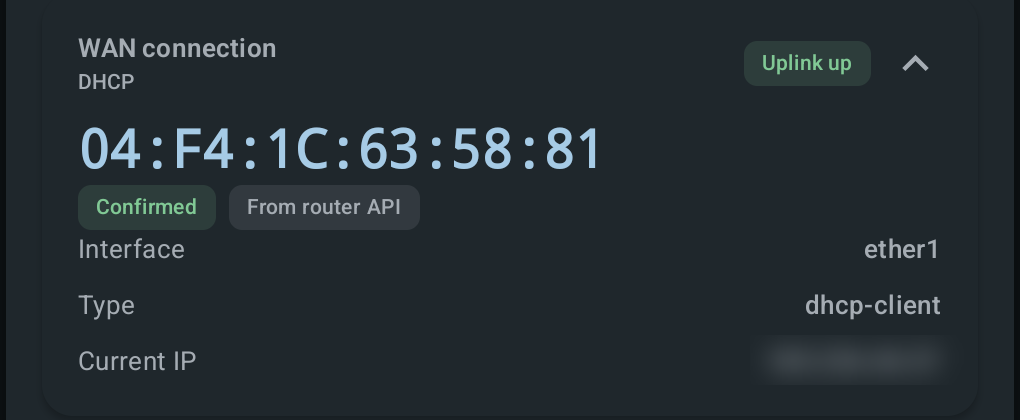
The address the ISP binds to
Many ISPs admit only a router they recognise — by the MAC address of its external port.
Swap the router and the Internet stops. What is needed is the address of the port facing the ISP: the phone does not know it and shows its own instead.
NetWrench reads it from the router and shows it alongside the connection method, the interface and the address obtained. The source is labelled: Confirmed — read from the router API, Likely — inferred, Unknown — could not be obtained.
Which model it is
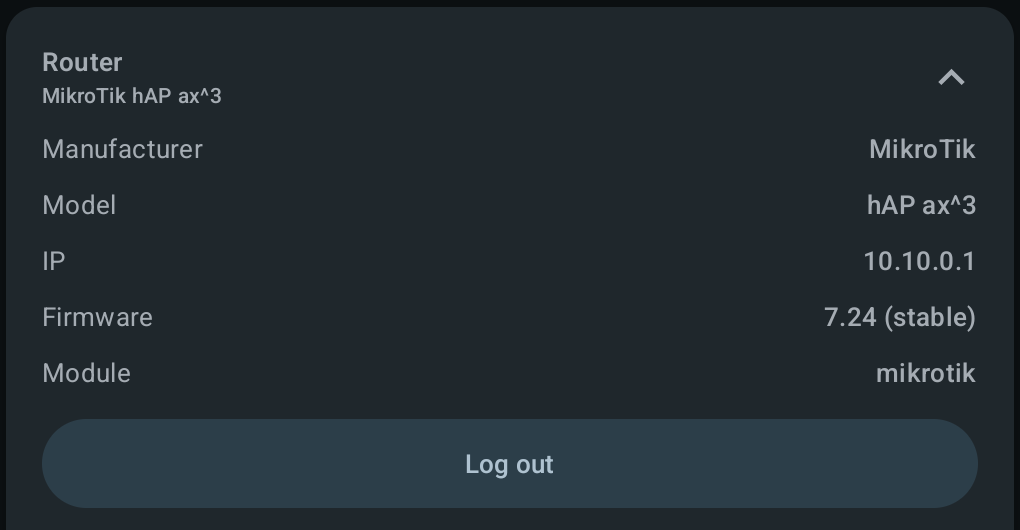
Label worn off, owner does not remember — no way to tell what can be done with the router.
The manufacturer is identified without any password. Model and firmware follow once you sign in with the router's own account; those credentials are entered by you and stay on the phone.
Wi-Fi name and password
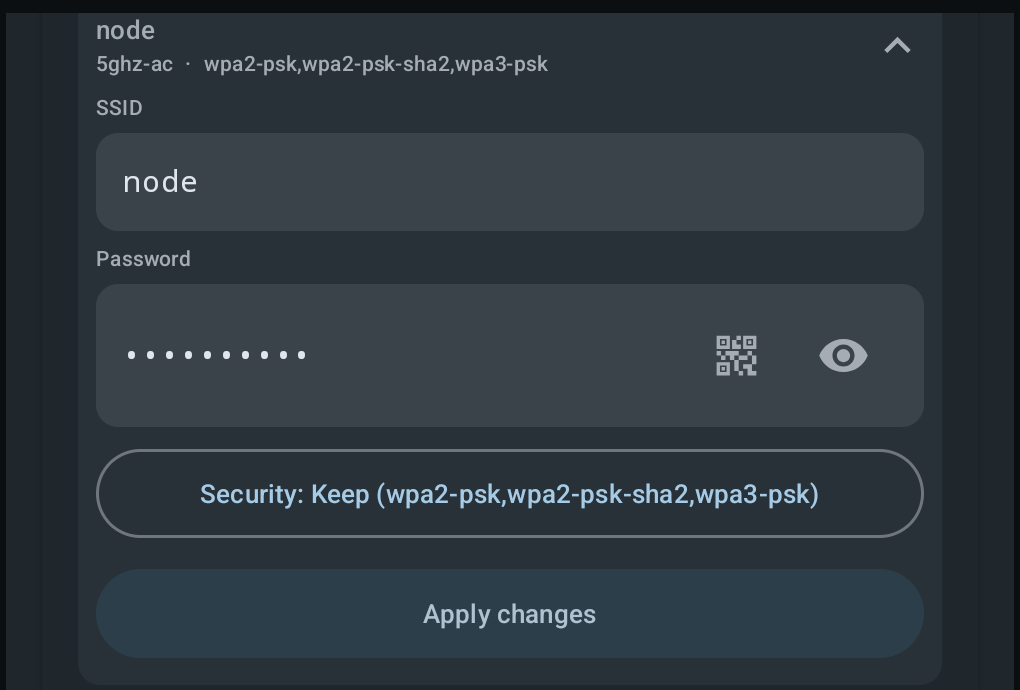
Rename the network from the factory default and set the subscriber's password — on every installation.
Every radio the router has, each with its name, password and security mode. Changes go out in one request: done one at a time, the network would briefly come up with the new name and the old password, and a failure halfway would leave the router half configured. Next to the password, a QR button hands access to a guest without reading it out.
Joining a new router
Stop typing the factory passphrase off the label several times a day.
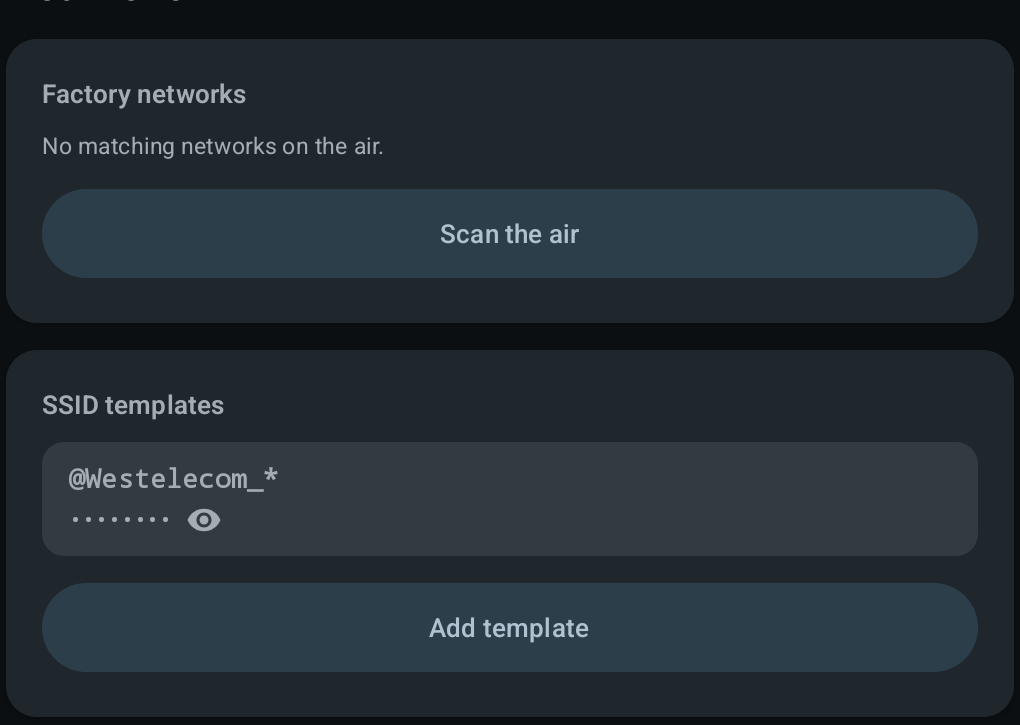
Describe your fleet's factory SSID pattern and its passphrase once. The app finds matching networks on the air and hands both to the system join dialog — you only confirm.
Wi-Fi
Quality where you stand
Choosing where to mount an access point, or walking a flat with a "does not work in the back room" complaint.
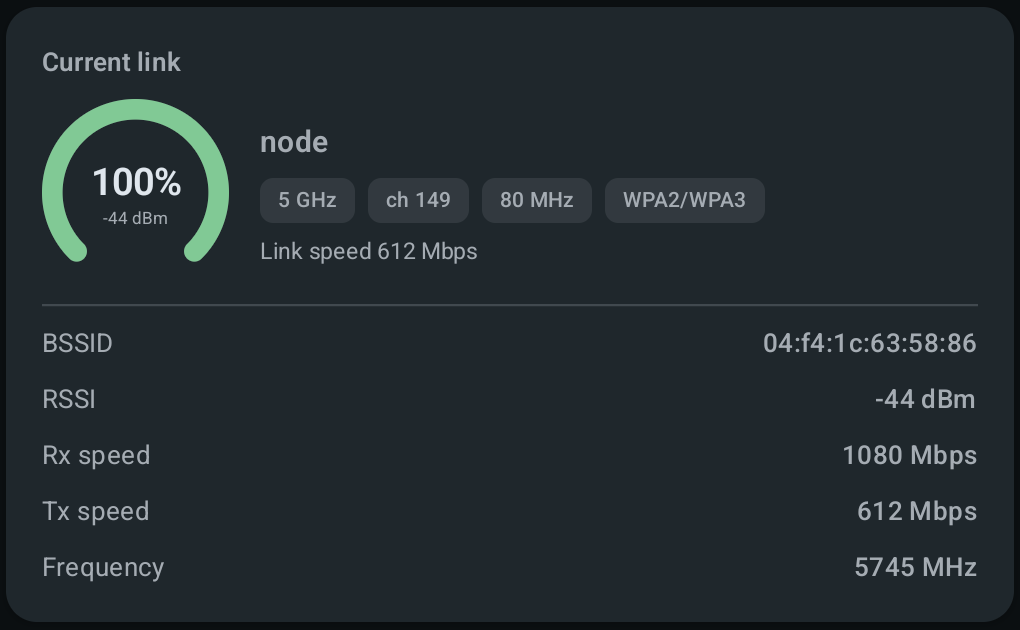
Level as a percentage and in dBm, channel, width, security mode, BSSID, receive and transmit rates. Link rate is not Internet speed, and is never shown in place of a measurement.
The air and its channels
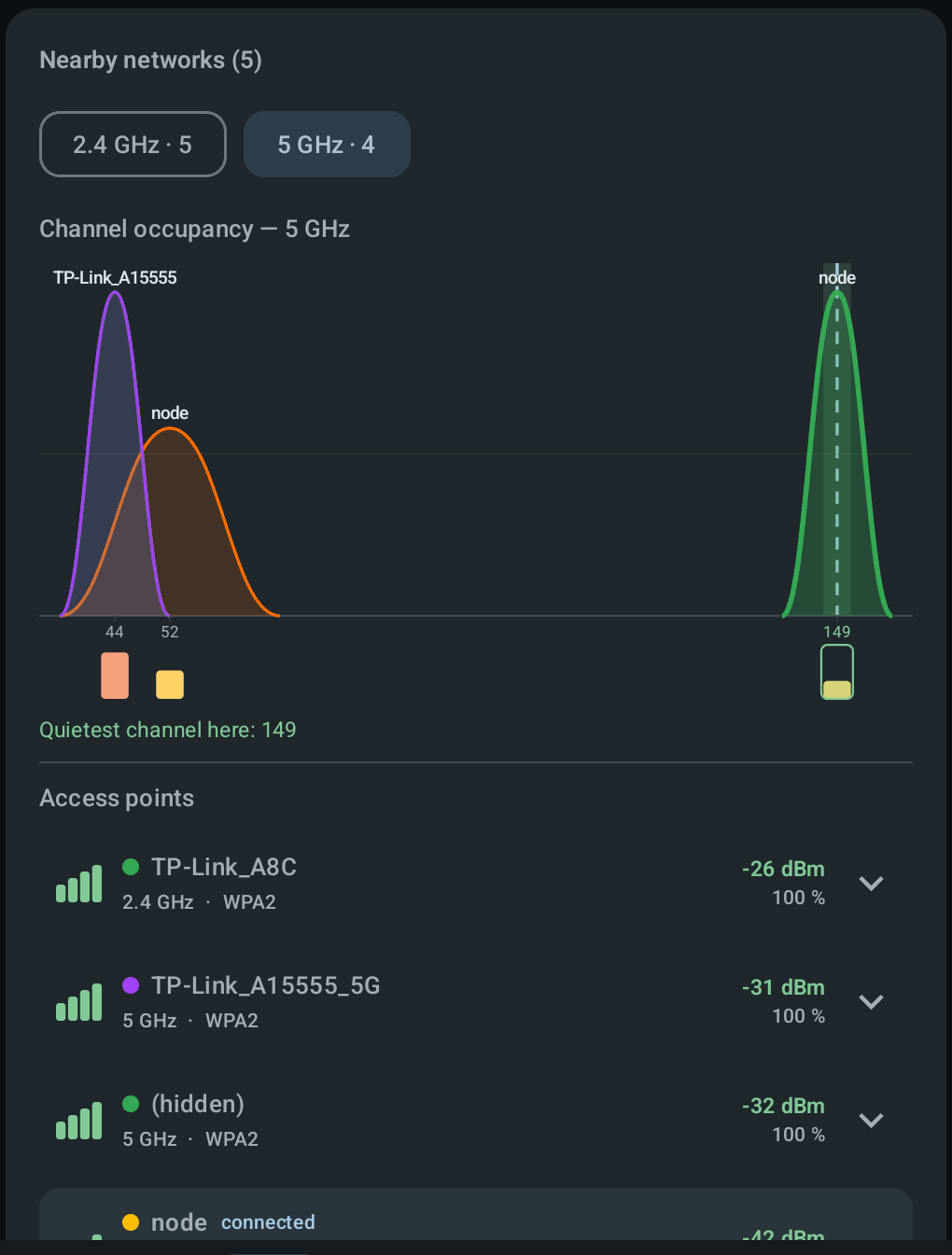
The access point landed on a channel the neighbours use: throughput drops and the link stutters at full signal.
Channels are laid out by frequency, so overlap is visible. Bands switch, your own network is marked, and the quietest channel is named underneath. An unreported level shows as a dash, not a zero.
Network
What is on the network
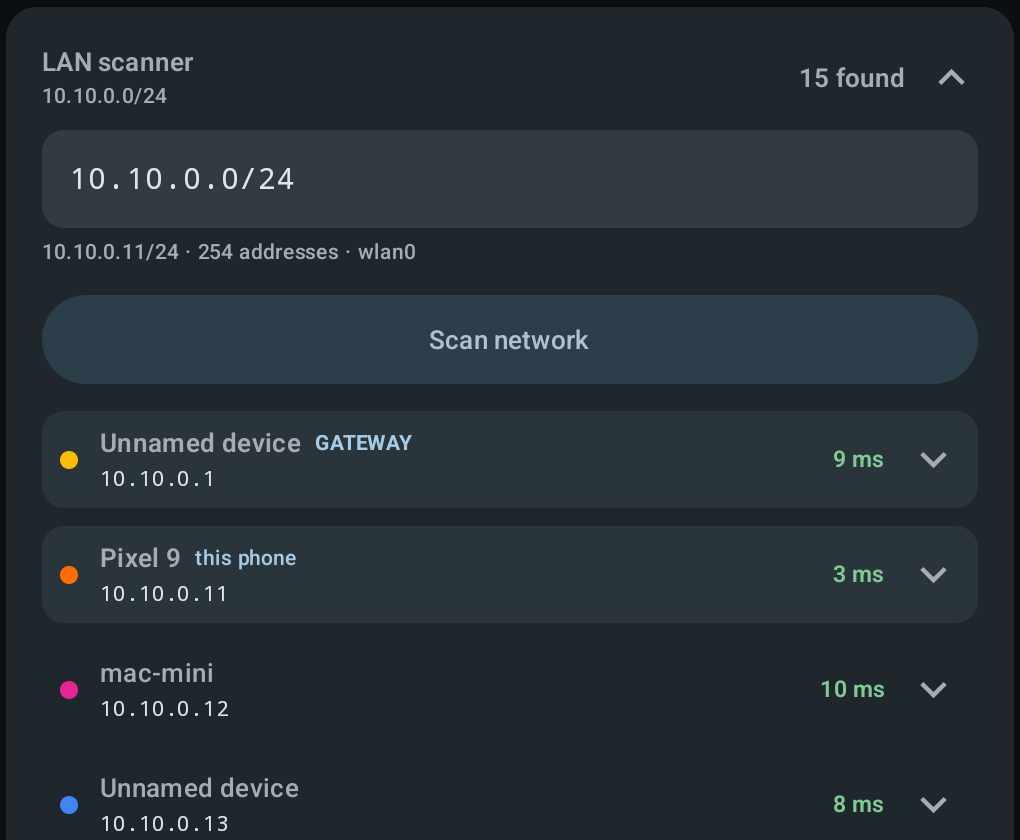
Find the camera whose address nobody wrote down, or check whether a device got its lease.
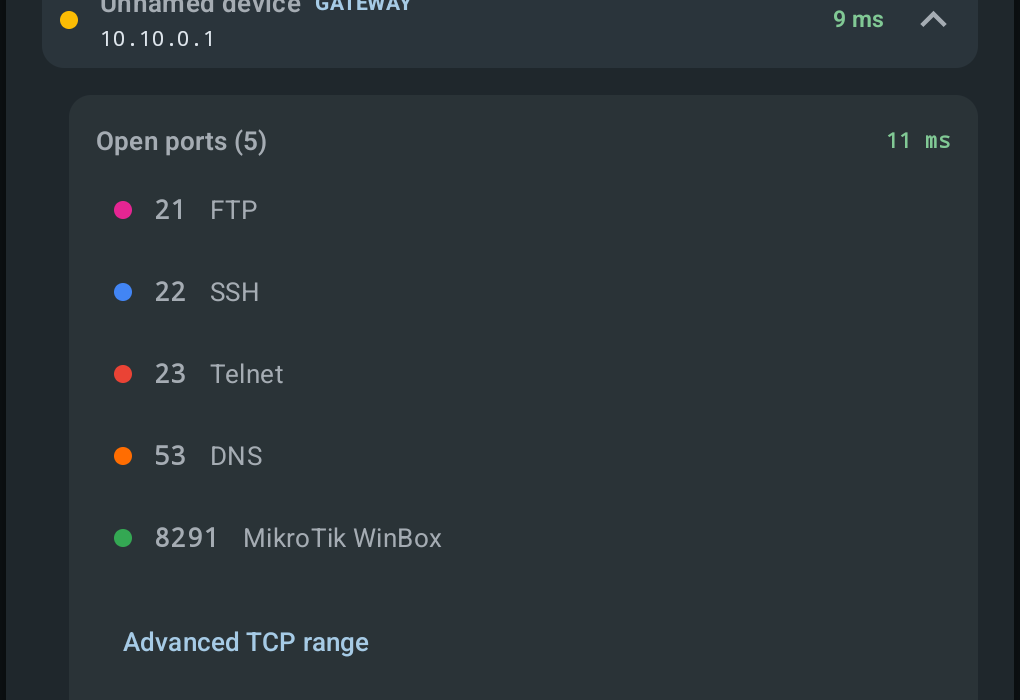
Walks the subnet, finds live hosts and shows their names and response times. The range can be set by hand. It runs only on the button — the app never touches the network in the background.
Ports on a device
The device turned up, but it is unclear what it is or how to get into it.
A host expands in place and lists its open ports with the services behind them. A full sweep never starts on its own — there is a separate range for that, and you set it.
Latency and loss
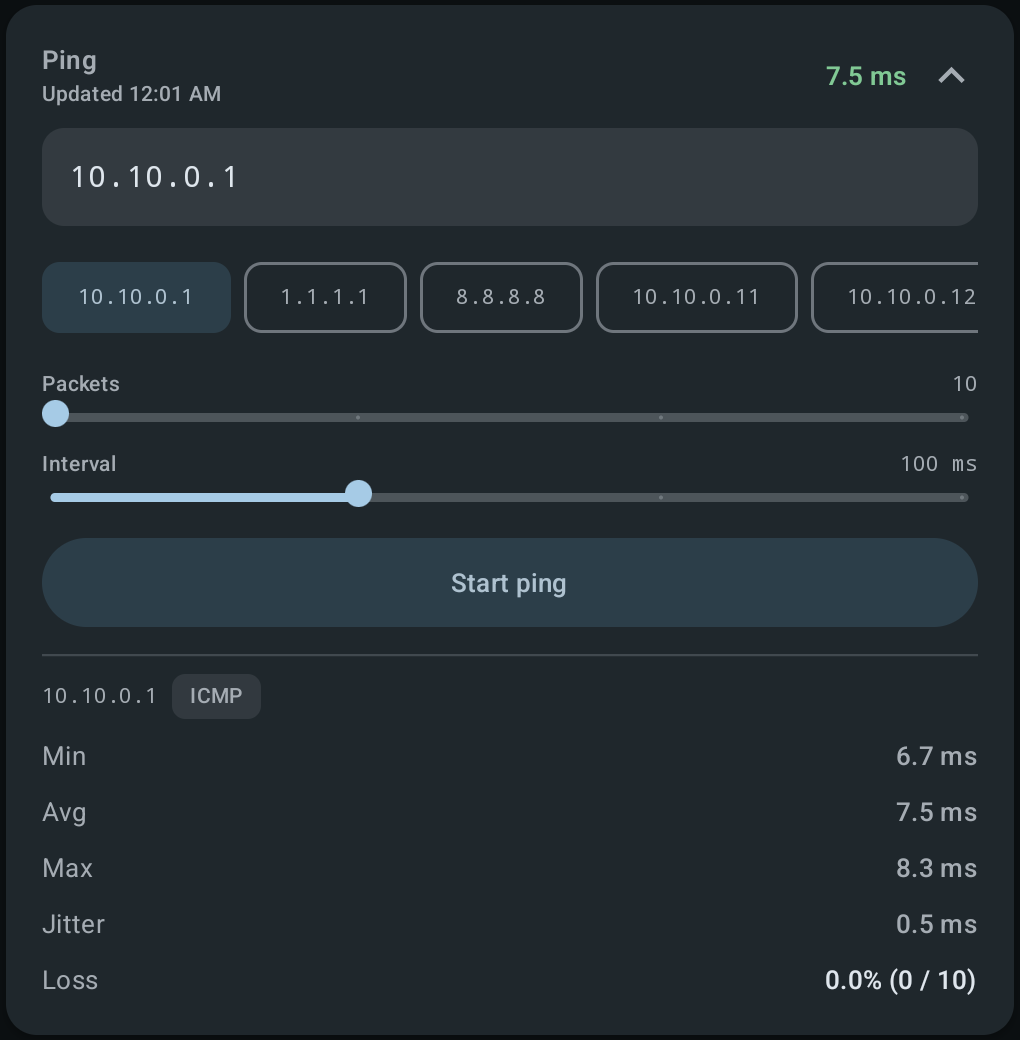
Find out whether a host answers and how steadily — the router, a site, a camera.
Type the address or take it from the quick buttons; packet count and interval are sliders. The answer is min, average, max, jitter and loss, labelled with what did the measuring: ICMP, or TCP where Android denies raw ICMP.
The route outward
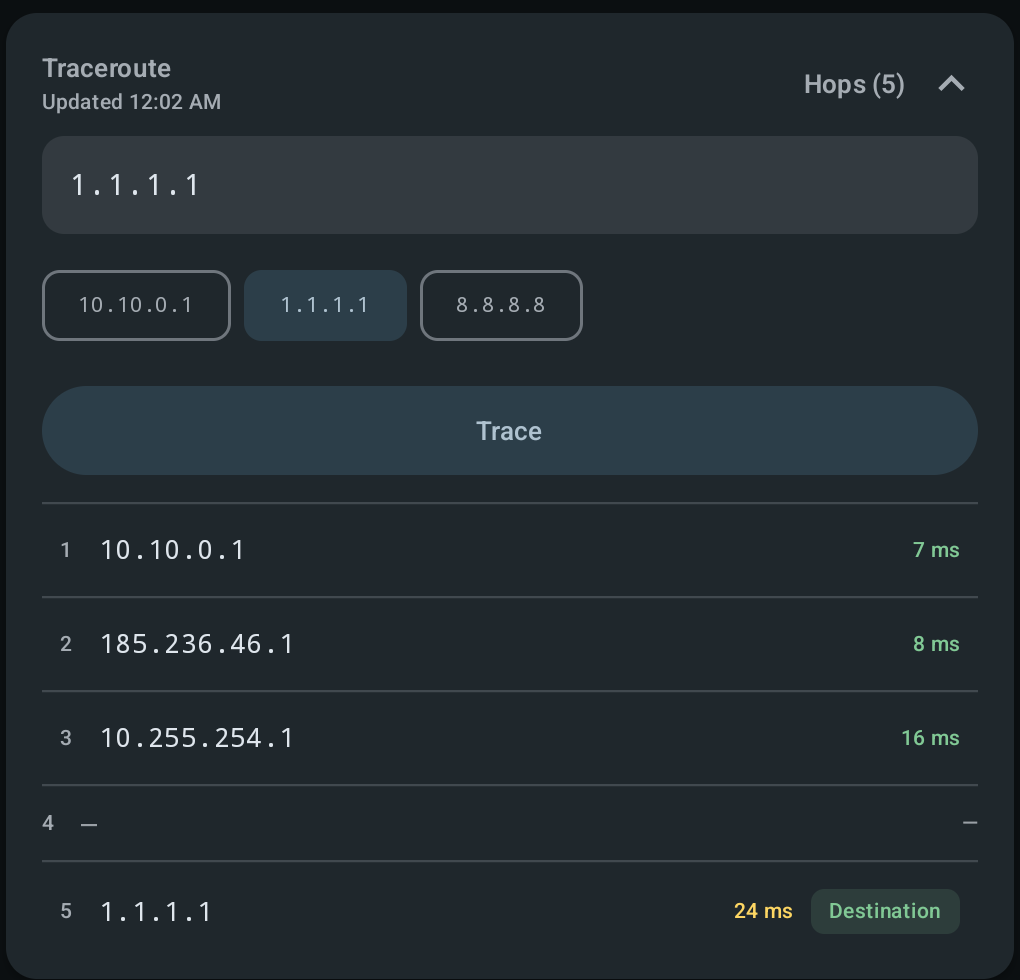
Port forwarding is set up by the book and still nothing opens from outside.
A native ICMP trace shows every device on the path and the time to it. If the ISP handed out a private address and another sharing device sits upstream, you can see it as a private address among the hops — and that means forwarding on your router cannot work.
iPerf3
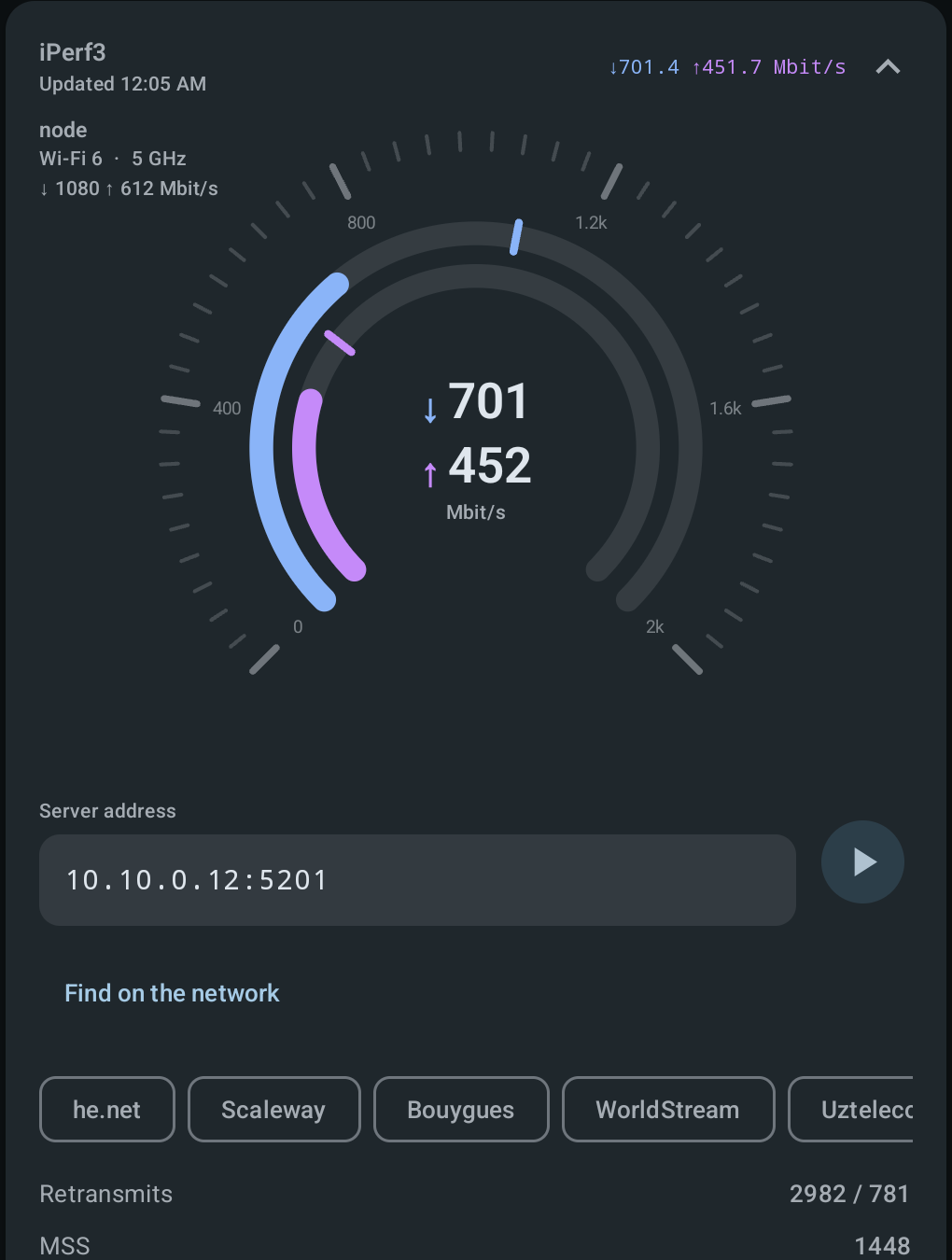
Measure throughput with the real tool rather than an approximation.
A full iperf3 inside the app: server address, duration, stream count, direction. A server on your own network is discovered automatically, and a list of public ones sits beside it. Besides the rate it reports retransmits and MSS — which tell you whether the link is dropping packets, something an ordinary speed test cannot show.
Tools
MAC and subnet calculators
Work out a neighbouring MAC or the bounds of a subnet without getting the laptop out.
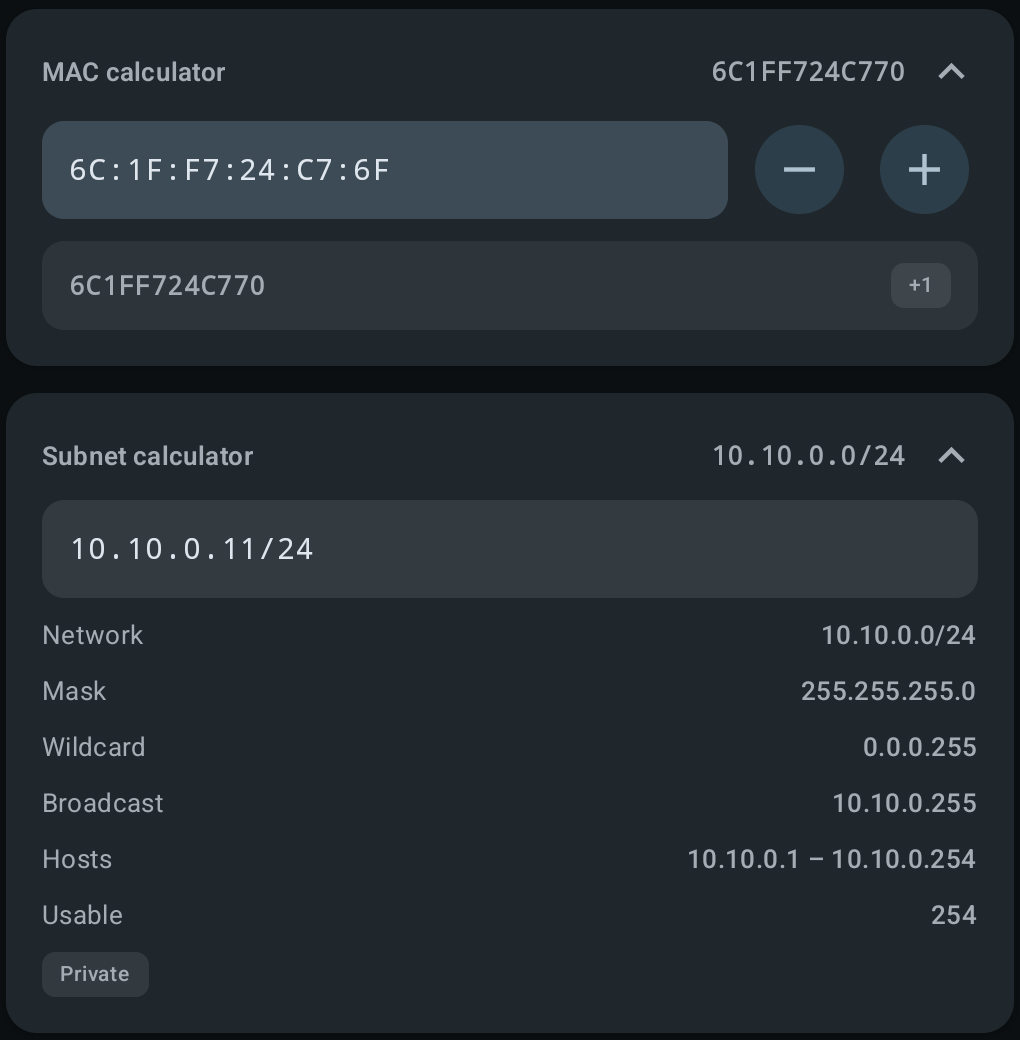
The MAC calculator steps up and down by one: a device's interface addresses usually run consecutively, and the WAN address often differs from the one on the label by exactly one. The subnet calculator takes an address with a mask and returns the network, mask, wildcard, broadcast, host range and count, and flags a private range.
Link checks
One-tap diagnostics
A complaint with no detail, the subscriber next to you, no time to check things one at a time.
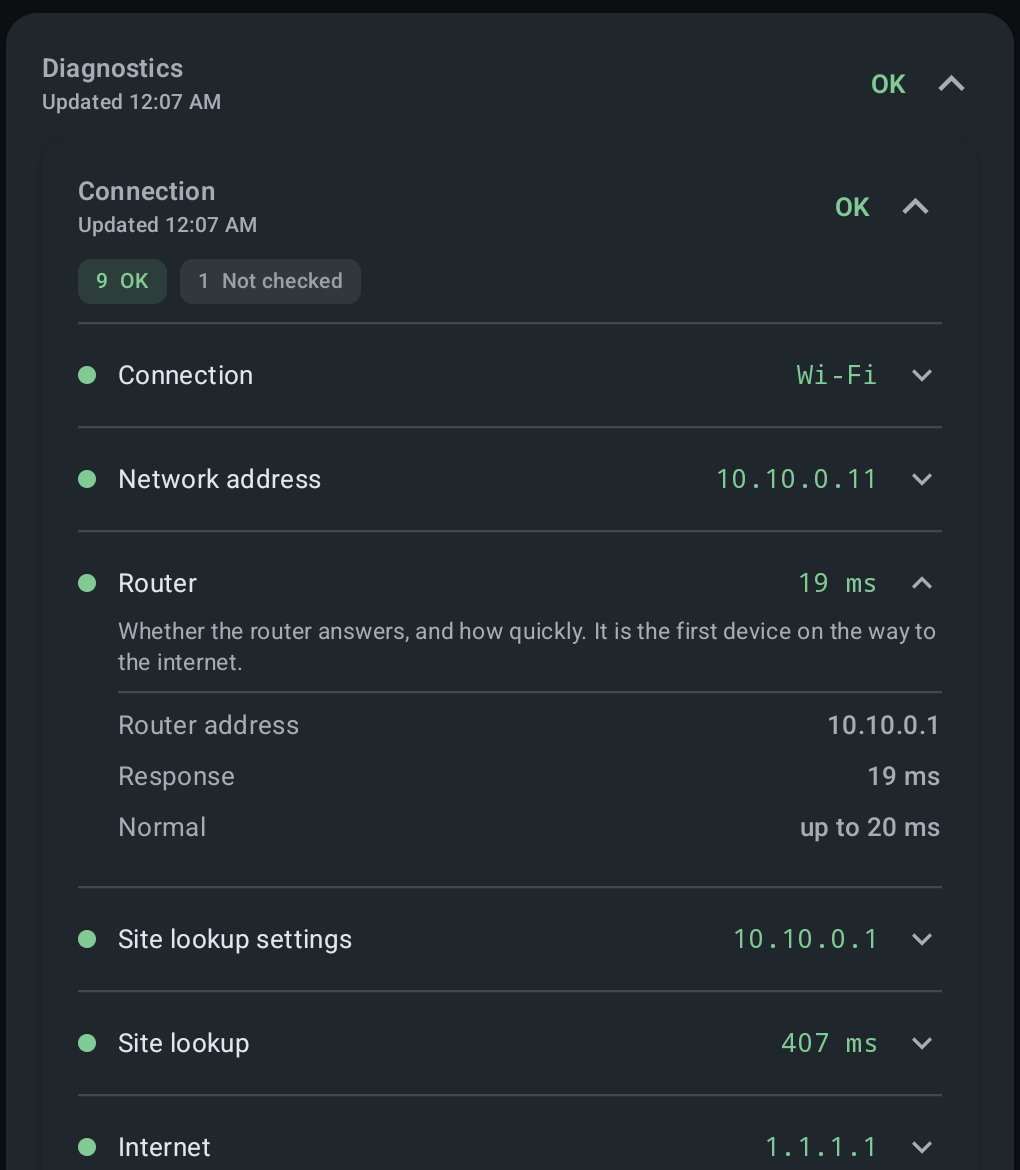
Walks the chain from phone to Internet: the link, the address, the router and how fast it answers, name-lookup settings and whether lookups work, reaching the outside, latency, stability, signal, speed inside the network. Worded plainly so the screen can be shown to the subscriber; any row opens to explain what it checks, with the threshold it was judged against beside it.
Connection state
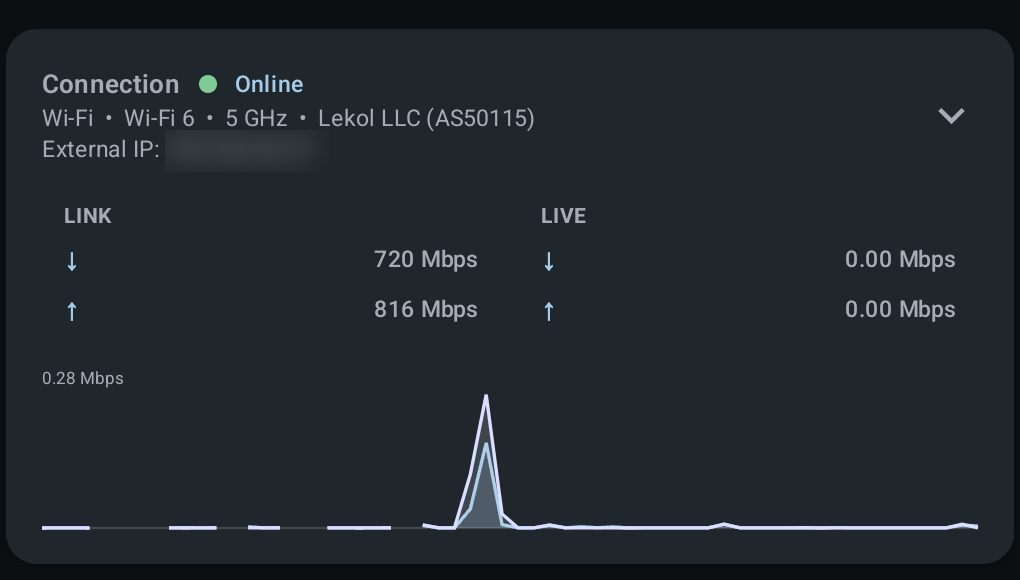
What carries the link, which address was assigned, and whether traffic is flowing right now.
Transport, Wi-Fi generation, band, the ISP behind the external address, link rates and a live traffic graph. Works over Wi-Fi and over cable through an adapter. What Android does not report is marked unavailable.